
Turn on Chat Page
Chat Page is a ready-made chat page for your business. Share one link, and customers can pick a service and chat with you, no website needed.
On this page
What you need
- Access to Workspace settings
- Access to Channels
- At least one Live Chat channel set up for a public website
- Time
- ~5 min
- Steps
- 6
Chat Page is a chat page for your workspace that we host for you, so you don't need a website of your own. Customers open its link, pick a service, and chat with your team and AI agent. In the console it's called Chat page.
Each service on the page is one Live Chat channel. For example, you could have one channel for sales and another for technical help, each shown as its own card. If you don't have a Live Chat channel yet, create one first with Add Live Chat to your website. You don't have to install its code on a website.
Turn on Chat Page
- Open Channels, choose the Live Chat channel you want to show, then open the Widget settings tab.
- In the Chat page section, tick Show on the chat page.
- Fill in the Card title. The Link name is suggested from the title; change it if you like, then click Save.
- Repeat steps 1–3 for every service you want to show.
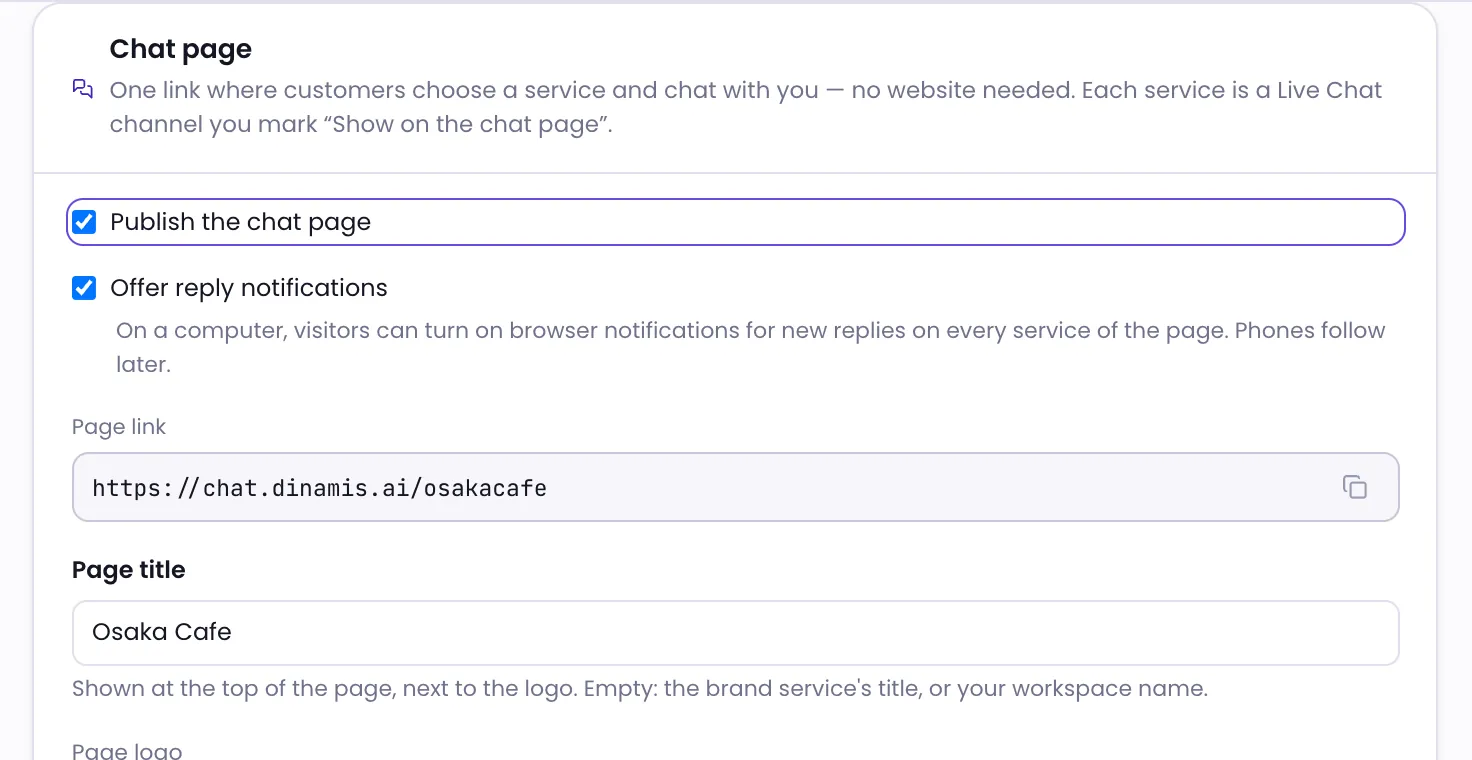
- Open Workspace settings, then on the Chat page card tick Publish the chat page and click Save.
- Copy the Page link and share it, for example in your social media bio, your catalogue, or a message to customers.
Set up the page's look
All of these live on the Chat page card in Workspace settings:
- Page title — shown at the top of the page, next to the logo. When empty, the brand service's title or your workspace name is used.
- Page logo — a PNG, JPG or WebP image; square works best. The logo uploads right away, without waiting for the save button.
- Greeting — a greeting in Indonesian and English.
- Colours from — the Live Chat channel whose colours the page uses.
- Theme — Same as the brand service, Follow the visitor's device, Light or Dark. The theme applies to the whole page, including every conversation.
- Language — follow the visitor's browser, or fix one language.
At the bottom of the card, Services on the page lists every Live Chat channel and whether it is On the page or Not on the page, with a link to its settings.
Set up each service card
In the Chat page section of each channel, you can also fill in a Short description, the Service hours shown while nobody is online, an Icon and the Order; lower numbers come first. The Card link opens that service directly, which is handy when you want customers to go straight to one service.
A Live Chat channel that uses your app's own sign-in can't be shown on Chat Page, because its conversations need that app's sign-in.
Troubleshooting
The page opens but shows no services
No Live Chat channel has Show on the chat page ticked yet. Repeat steps 1–3.
The link name is refused
Use lowercase letters, numbers and hyphens only. A name another channel already uses, or one the system reserves, can't be used; choose another.
I want to close Chat Page for a while
Untick Publish the chat page and save. Visitors who have the page open will see that the service is unavailable.
Was this article helpful?