
Team performance
The Performance screen sums up your sales funnel, lead sources, and each team member's results. Learn what each report shows and how to filter it.
On this page
Performance shows how leads move from the first conversation to closing, and what each team member contributes. It sits in the Analytics group and appears only if your role has access to it.
Choosing a report
Click the Report button at the top left to open the list of reports. Each report has a one-line description, and new ones are marked New. Reports come in three groups.
Funnel & conversion
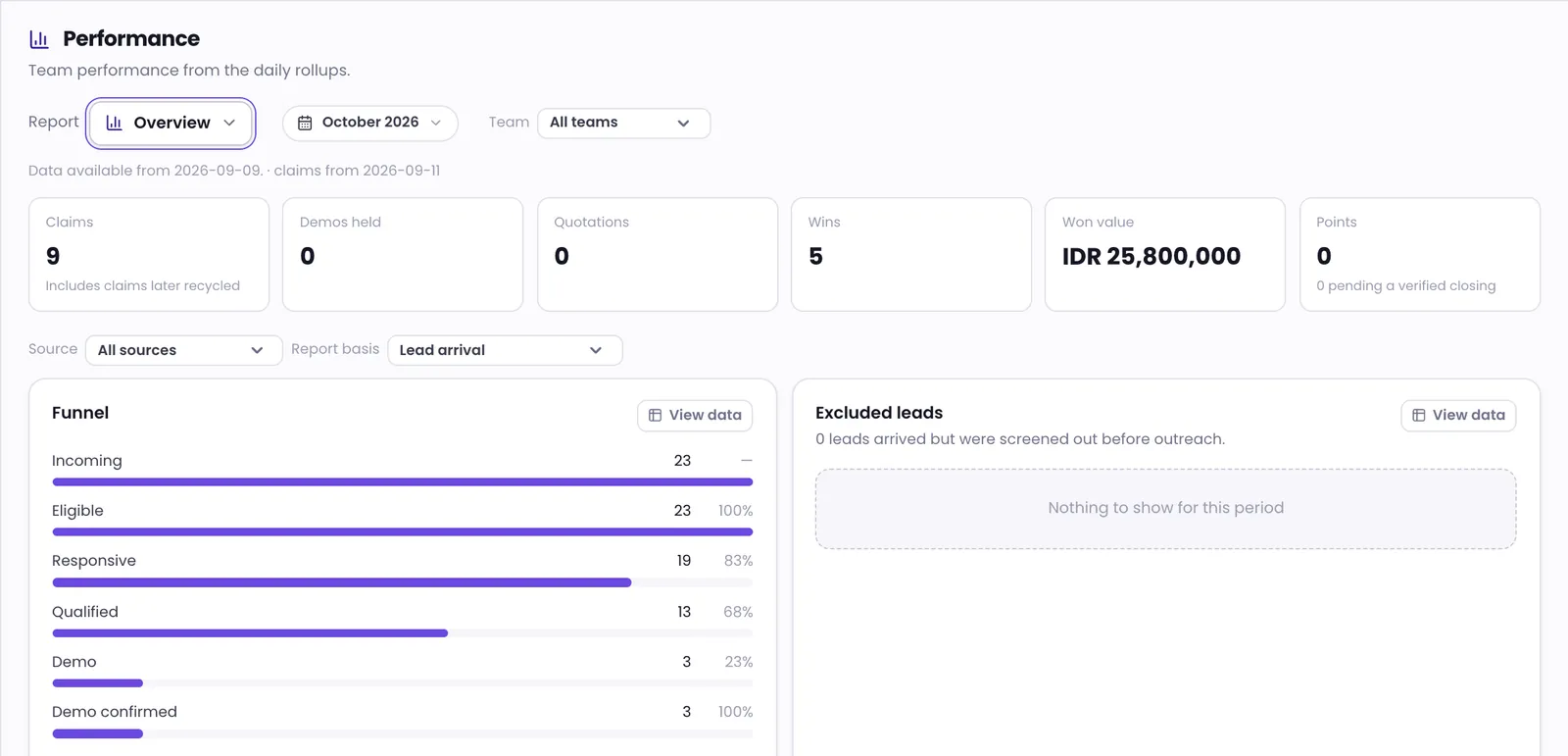
- Overview — key numbers and the funnel for the period. This report opens by default.
- Funnel comparison — funnels side by side, per week or per month.
- Conversion rates — conversion between stages, per week or per month.
- Closing by lead age — how the chance of closing changes as a lead ages.
Sources & team
- Leads by source — incoming leads per day, by source.
- Team performance — results and points for each team member. Click a member's name to open their performance details.
- Screen share — screen-share sessions per member: how many, how long, and how many screenshots.
- Timing & coverage — how quickly work is claimed and how many team members are on hand by hour.
Raw data
- Records — every lead with the stages it has reached.
- Opportunity records — every opportunity card and its outcome.
Filtering a report
The filters in the top bar apply to whichever report is open:
- Period — the current month by default. You can pick a month, a quarter, a single date, a date range, or a relative period.
- Pipeline — appears when your workspace has more than one pipeline. The default is All pipelines.
- Team — appears when there are teams you can see. The default is All teams.
If your access is limited to your teams, the numbers cover only the pipelines those teams work in. The one exception is the chart of team members online by hour on the Timing & coverage report, which always covers the whole workspace. The filters and the chosen report are kept in the page address, so a link you share opens the same view.
Below the filters, the screen shows the date data is available from. A period before that date doesn't mean performance dropped; the data simply wasn't recorded yet.
Downloading data
Some reports, such as Team performance, Records, and Opportunity records, have CSV and Excel buttons to download the data. If there are too many rows, narrow the period and try again.
Some numbers on this screen are recalculated about once an hour, so the latest activity can take up to an hour to show. Updates filed a few days late, such as a demo outcome, are added to the right day automatically.
For call and screen-share usage, open Usage analytics.
Was this article helpful?