
Manage WhatsApp templates
Create WhatsApp message templates, submit them to Meta for approval, and understand each status so you can still reach customers outside the 24-hour window.
On this page
What you need
- Access to WhatsApp templates
- A WhatsApp Business number already connected to DinamisAI
- Time
- ~6 min
- Steps
- 7
When you need a template
WhatsApp allows free-form replies only during the 24-hour window that opens when a customer messages you. Once that window closes, the reply box in Conversations shows 24h window closed — use a template, and the only thing you can send is a template Meta has approved. Templates are also what your business uses to reach customers first.
Templates already approved on your number are copied automatically when you connect it. Templates you create directly in WhatsApp Manager can be pulled in with the Resync from Meta button on the WhatsApp templates screen.
Create a new template
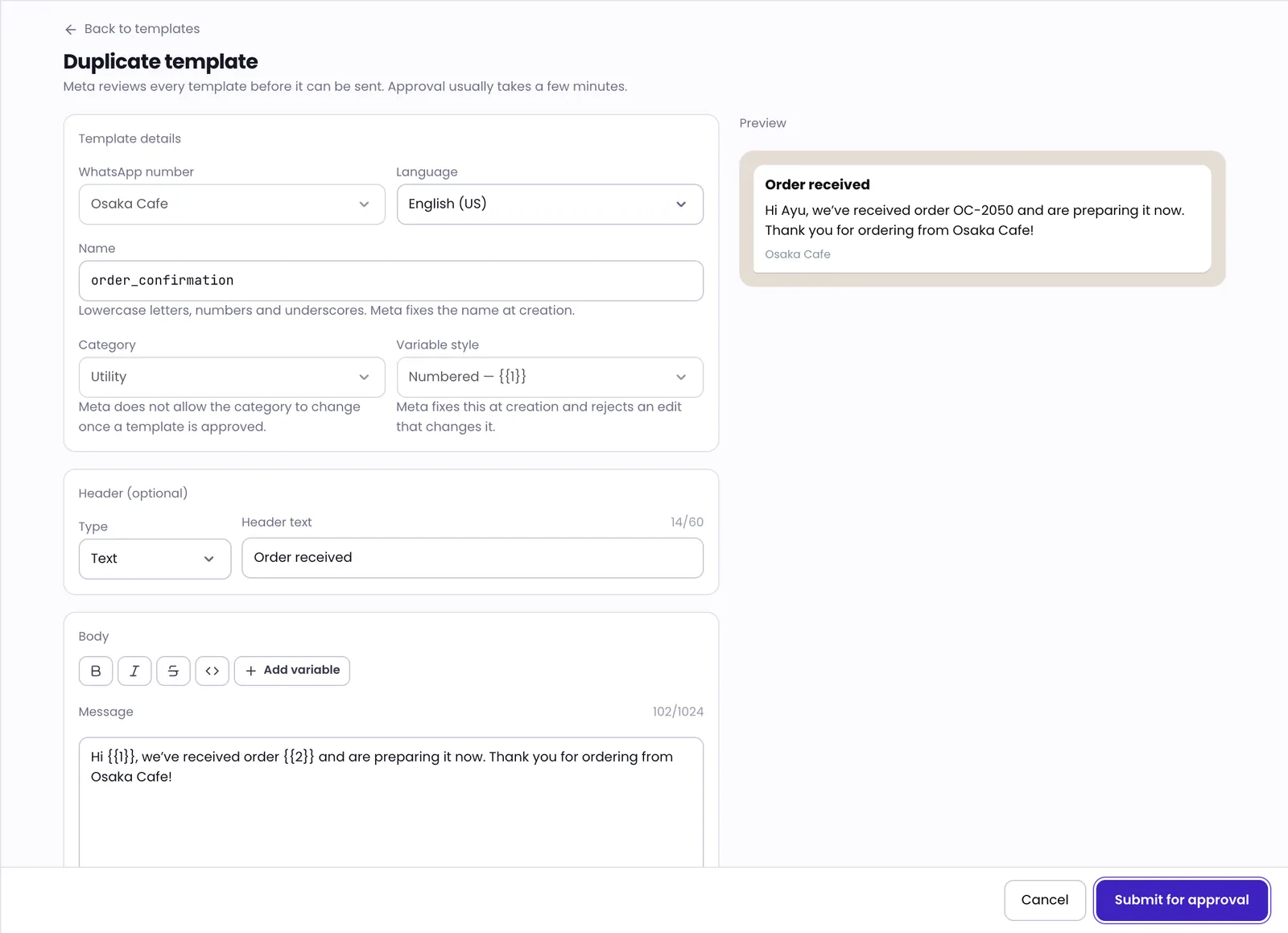
- Open WhatsApp templates, then click New.
- Under Template details, choose the WhatsApp number and Language, then fill in the Name using lowercase letters, numbers and underscores, such as
order_confirmation. - Choose a Category: Utility for transactional messages such as order confirmations, or Marketing for promotions.
- Write your message under Body. Click Add variable wherever customer data goes, such as their name.
- Enter an example value for every variable under Variables. Meta rejects a variable without one.
- Add a header, footer or buttons if you need them, then check the Preview beside the form.
- Click Submit for approval. The template joins the list with the status Pending.
As you write, the editor warns you about things that often get templates rejected, such as a message that starts or ends with a variable, text in all capitals, or a marketing template with no way to opt out. Meta fixes the name, language and variable style once a template is created, so check all three before you submit.
What each status means
Meta reviews every template before it can be sent. According to the editor, approval usually takes a few minutes.
| Status | What it means |
|---|---|
| Pending | Meta is reviewing it. It can't be sent or edited until the review finishes. |
| Approved | Ready to send to customers. |
| Rejected | Not approved. Click Edit, fix it, then submit again. |
| Paused | Temporarily can't be sent, because Meta or your team paused it. |
| Disabled by Meta | Meta has disabled this template. |
| Deleted | The template was deleted. Meta holds the name for about 30 days before it can be reused. |
When you save changes to an existing template, it goes back to Meta for review.
Once a template is approved
- It appears in the reply box in Conversations. Its variables fill in from the contact's profile, and you can hide a template from the reply box without losing its approval.
- Click Test to send a sample to your own WhatsApp number and see how it looks.
- Click Duplicate to create a version in another language with the same name.
Troubleshooting
There is no number to choose
Templates can only be created for a number linked to a WhatsApp Business Account. Connect or finish setting up a number in Channels first. See Connect WhatsApp Business.
The template name is refused as already taken
The same name and language already exist on that number, or the name was deleted recently and Meta is still holding it. Choose another name.
I can't edit a template
A template under review can be edited only after the review finishes. Templates with an image, video or document header can't be edited in this editor yet, so edit them in WhatsApp Manager.
Was this article helpful?