
Available work and My work
How conversations the AI agent hands off reach your team — from a card in Available work, through a claim, to your own My work list.
On this page
The AI agent replies to customers first. When it decides a person should take over, for example because the customer is ready to buy or needs help the AI can't give, it hands the conversation to your team. The conversation records this handoff as "Handed off for human follow-up".
Available work
Every handoff becomes a work card in Available work. The card shows the contact's name, the reason for the handoff as a coloured label, and a one-line summary written by the AI, so you can triage without opening each conversation.
- Work is grouped into queues. Pick a queue tab at the top, then narrow it with Reason when the queue has several reasons.
- The number next to the menu item is how much work can be claimed right now.
- The menu item only appears when your workspace has a claimable queue and your role has access to it.
Claim work
Claiming means you commit to following up with that customer.
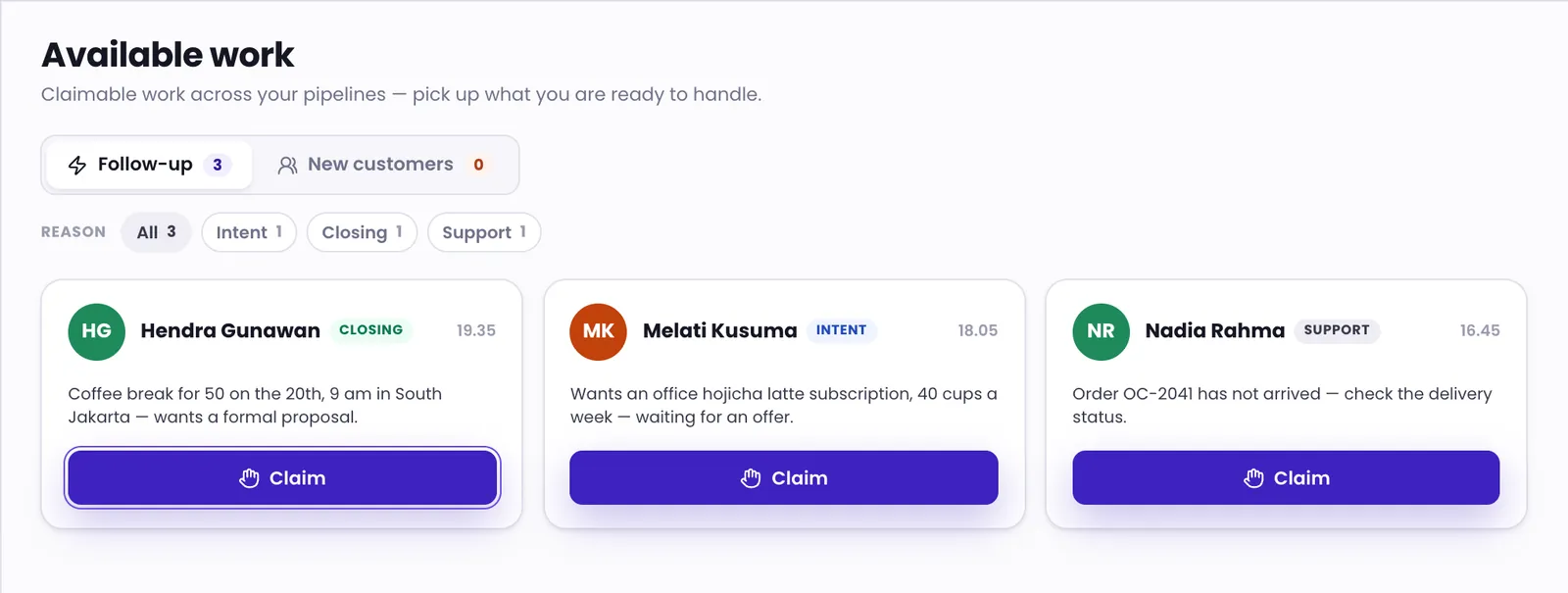
- Click Claim on the card.
- Read the What this lead wants summary (when it is shown) and the claim rules that apply, such as a cooldown between claims or a daily limit.
- Click Claim again to confirm.
The work and its conversation are now assigned to you and move to My work. If the claim button shows a countdown, you are still in a cooldown. If it says Daily limit reached, you have reached today's claim limit.
My work
My work holds all the work assigned to you, whether you claimed it or someone assigned it. From each card you can:
- open the conversation with Open conversation;
- record progress through the pipeline's stages;
- close the work with its outcome. Some outcomes are reviewed by a supervisor first, and the card shows Awaiting review until then.
If your workspace assigns work automatically, a card can arrive marked Needs acceptance with a countdown. Click Accept to start on it, or Decline to have it reassigned. When you decline, add a reason so the next assignment lands better.
Conversations and assignment
Not every conversation becomes a work card. Conversations lists every conversation you're allowed to see, split into the Mine, Unassigned, and All tabs.
If your role allows it, right-click a conversation and choose Assign agent to assign it to a teammate. Where it's available, choose Next agent in rotation to let the system pick whoever has waited longest for work.
You can also reply straight away to a conversation the AI is handling. Your first reply automatically takes the conversation over from the AI; see Take over a conversation from the AI.
When nobody claims
Work waits in Available work until someone claims it, and it keeps counting in the menu number. While nobody has picked it up, the AI agent keeps answering the customer so they aren't left without a reply. It stops as soon as a team member claims the conversation or replies to the customer.
If your workspace assigns work automatically, it can also be set up to pass work to another teammate when it's declined, not accepted in time, or not started promptly.
Was this article helpful?