
Connect email
Connect your business email address so customer emails arrive in Conversations and your team's replies go out from your own address and domain.
On this page
What you need
- Access to Channels
- An email address on a domain you own, not a free address such as Gmail
- Access to your domain's DNS settings, or help from your IT administrator
- Access to the forwarding settings of your email provider
- Time
- ~10 min
- Steps
- 6
An email channel has two halves that are set up separately: sending, so your team's replies go out in your domain's name, and receiving, so customer emails are forwarded to DinamisAI. The wizard guides you through both in three steps. No step blocks the next, so you can carry on while you wait. Once it is ready, customer emails arrive in Conversations alongside messages from your other channels.
Connect your email address
- Open Channels, click Add channel, then choose Email.
- In the Email address step, enter the address customers write to, such as
hello@yourshop.com, then click Continue. - In the Verify domain step, add the DNS records shown wherever your domain's DNS is managed, then click I've added the records — check now.
- Click Continue without waiting for verification to finish.
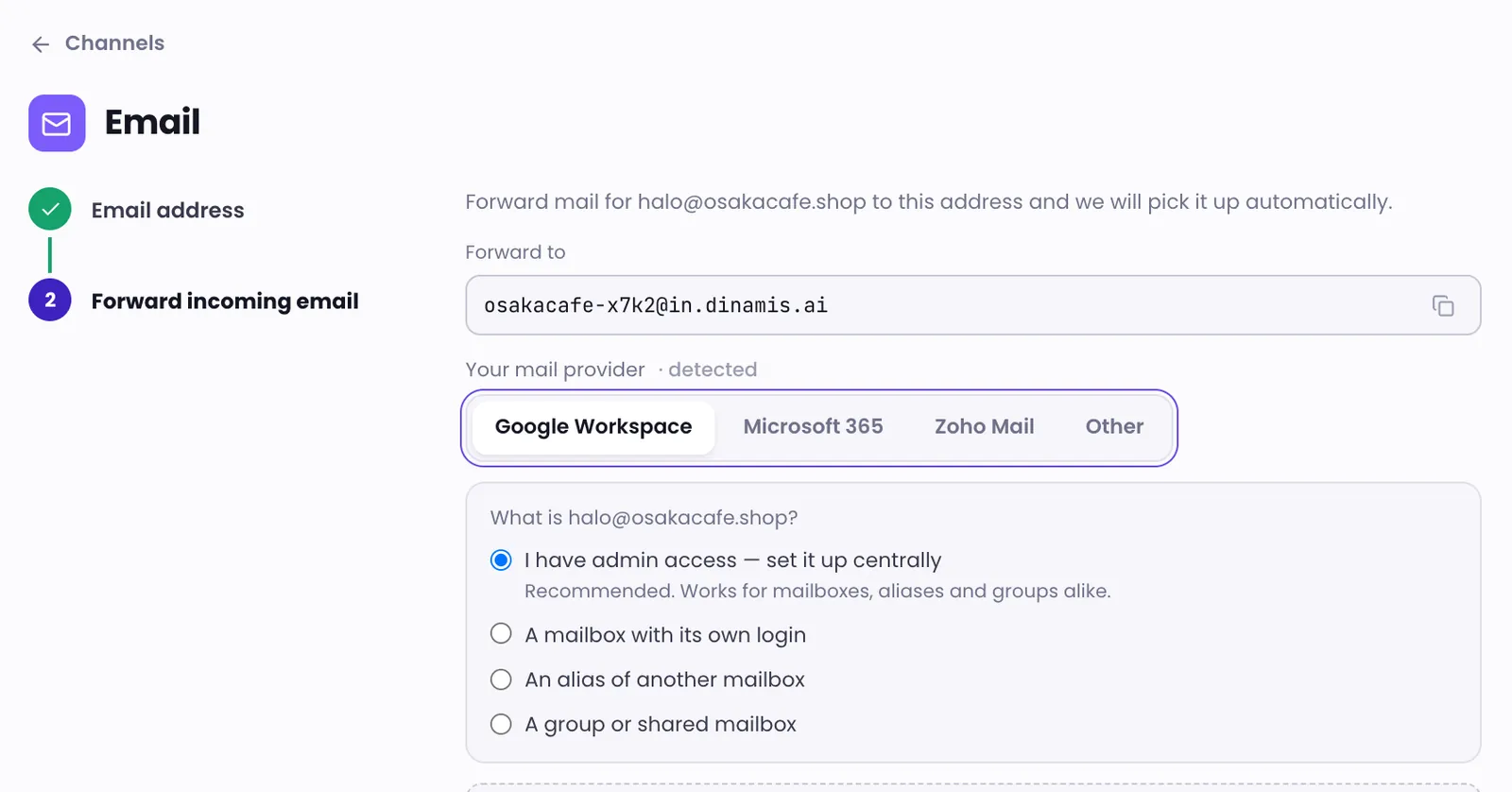
- In the Forward incoming email step, choose Your mail provider and answer the question about your address, then follow the numbered guide to forward mail to the address under Forward to.
- Click Send a test email, or send an email yourself to that address from another mailbox. Once Incoming email received appears, click Done, or Finish later if sending is still being verified.
The domain verification step
The DNS records come in two groups:
- Required — the record that lets DinamisAI sign email in your domain's name.
- Recommended — optional. When ticked, outgoing email also uses your domain for "mailed by". Sending works without it.
DNS changes usually show up within minutes, but can take a few hours. While you wait, the wizard shows Domain verification in progress, which changes to Sending enabled once the domain is verified. If your domain has been verified before, this step is skipped.
The forwarding step
The forwarding guide adapts to your email provider: Google Workspace, Microsoft 365, Zoho Mail or Other. For Google Workspace and Microsoft 365, first answer the question about the address: you have admin access, or it is a mailbox, an alias or a group. If you have admin access, choose I have admin access — set it up centrally; it works for every kind of address.
Some email providers send a confirmation email before they agree to forward. When that happens, the message appears in the wizard. Open the confirmation link there, then finish the remaining steps in your mail settings.
Forwarding brings in incoming mail only, so your mailbox won't show the replies sent from DinamisAI. Tick Send me a copy of every reply if you want a copy of every reply in that mailbox.
Setup status
An email channel becomes active only once both halves are ready. Until then, the Channels list shows receiving and sending each as pending or ready, with a Finish setup button that takes you back to the wizard. The DNS records and the re-check button also stay available on the Email settings tab.
Troubleshooting
My Gmail or Yahoo address is refused
DinamisAI can only send in the name of a domain you control, so free email addresses can't be used. Use an address on your business domain.
The test email hasn't arrived after 2 minutes
Check the Spam folder of that mailbox first. You can also send an email yourself to that address from another mailbox; it appears in the wizard when it arrives.
My DNS provider says the record value is too long
Choose the value tab that splits it into quoted parts, then paste all of them into one record, on one line.
The domain is said to be connected somewhere else
That domain is already used for sending email somewhere else. Ask your DinamisAI contact to release it, then try again.
Was this article helpful?