
Create and use saved replies
Save the answers you send often as saved replies, then drop them into the reply box by typing a slash and the reply's shortcode.
On this page
What you need
- Permission to manage saved replies (to create your own)
- Time
- ~4 min
- Steps
- 5
Saved replies save time on answers you send again and again, such as a greeting, your opening hours, or how to pay. Once the WhatsApp 24-hour window has closed, send a WhatsApp template instead.
Create a saved reply
- Open Saved replies.
- On the Mine tab, click New.
- Fill in Title and Shortcode, for example
/hello. A shortcode starts with a slash, has no spaces, and uses only letters, numbers, or dashes (30 characters at most). - Write the reply in Message. To insert details that fill in automatically, click one of the Variables.
- Click Save changes.
You can also set a Category to keep replies grouped, or click Attach a file to include a file that goes out with the message.
Use a saved reply while replying
- By shortcode: in an empty reply box, type
/and a few letters of the shortcode or title. Pick a reply from the list by clicking it or pressing Enter or Tab. What you typed is replaced by the reply. - From the list: click Saved Replies (the lightning icon) below the reply box, then click the reply you want. It is added to whatever text is already there.
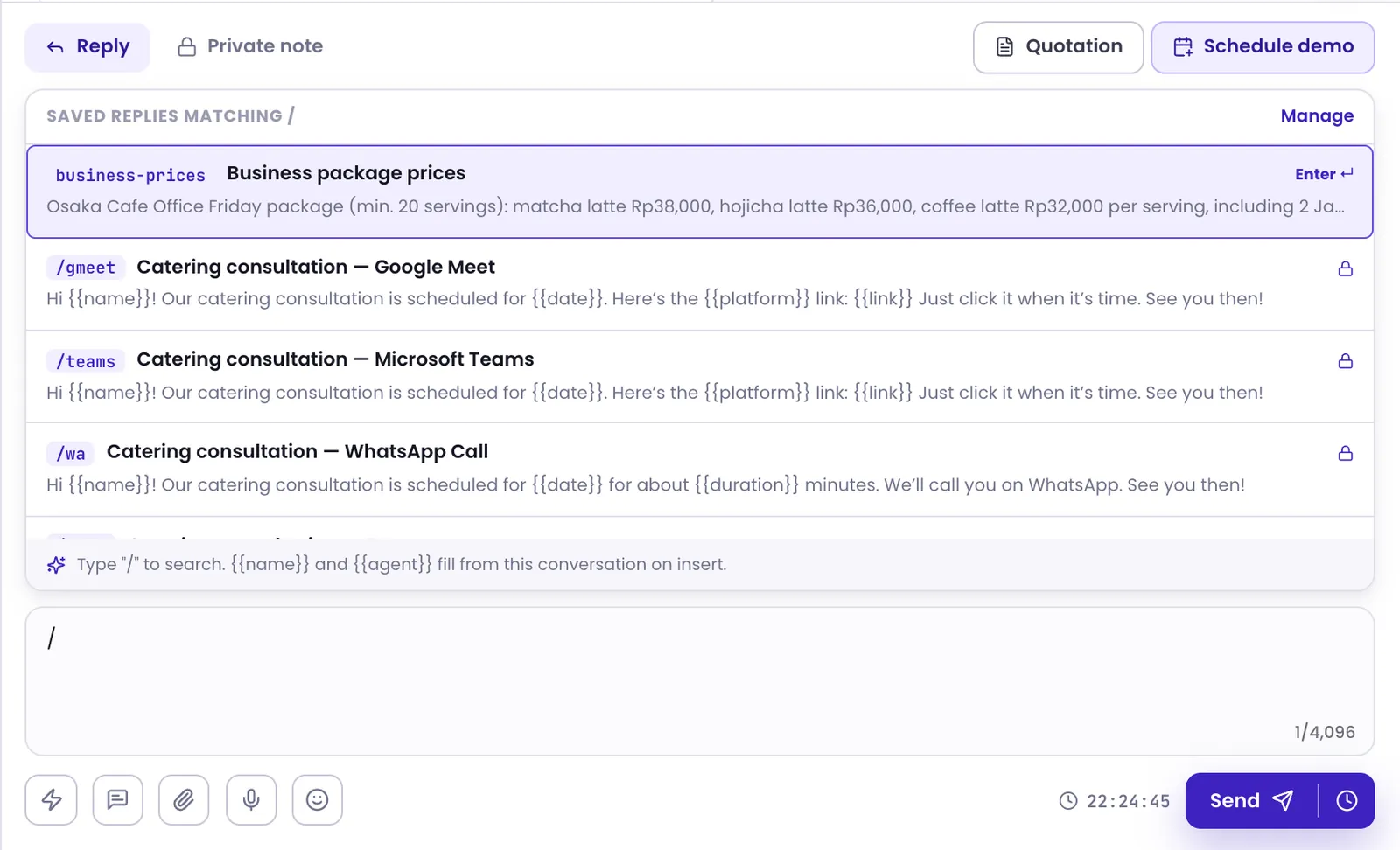
The {{name}} and {{agent}} variables fill in straight away with the customer's name and yours. Other variables stay as they are, so replace them before you send. If the reply carries a file, it's attached too, and you can still edit the caption. Check it once more, then click Send.
Replies shared with your team
The Workspace tab holds replies the whole team shares. Everyone can see and use them, but only members with permission to manage shared replies can create or change them. There are two kinds:
- Standard — everyone sends exactly the same text, always the latest version.
- Starter — everyone gets it, but you can choose Write your own version. Your version is visible only to you. Choose Reset to workspace version to follow the team's version again.
If one of your own replies uses the same shortcode as a workspace starter, yours is the one that's used. A standard reply always comes first.
Was this article helpful?