
Knowledge gaps
Knowledge gaps are customer questions the AI agent couldn't answer from your knowledge base. Learn how to find them and close them.
On this page
When the AI agent answers a customer, it looks things up in Knowledge base. If that search finds nothing, the question is recorded as a gap: something customers asked that your knowledge base can't answer yet.
Viewing your gaps
Open Knowledge base, then choose the Gaps tab. The list covers questions from the last 30 days, with the most-asked first. The questions at the top are usually the best ones to write answers for next.
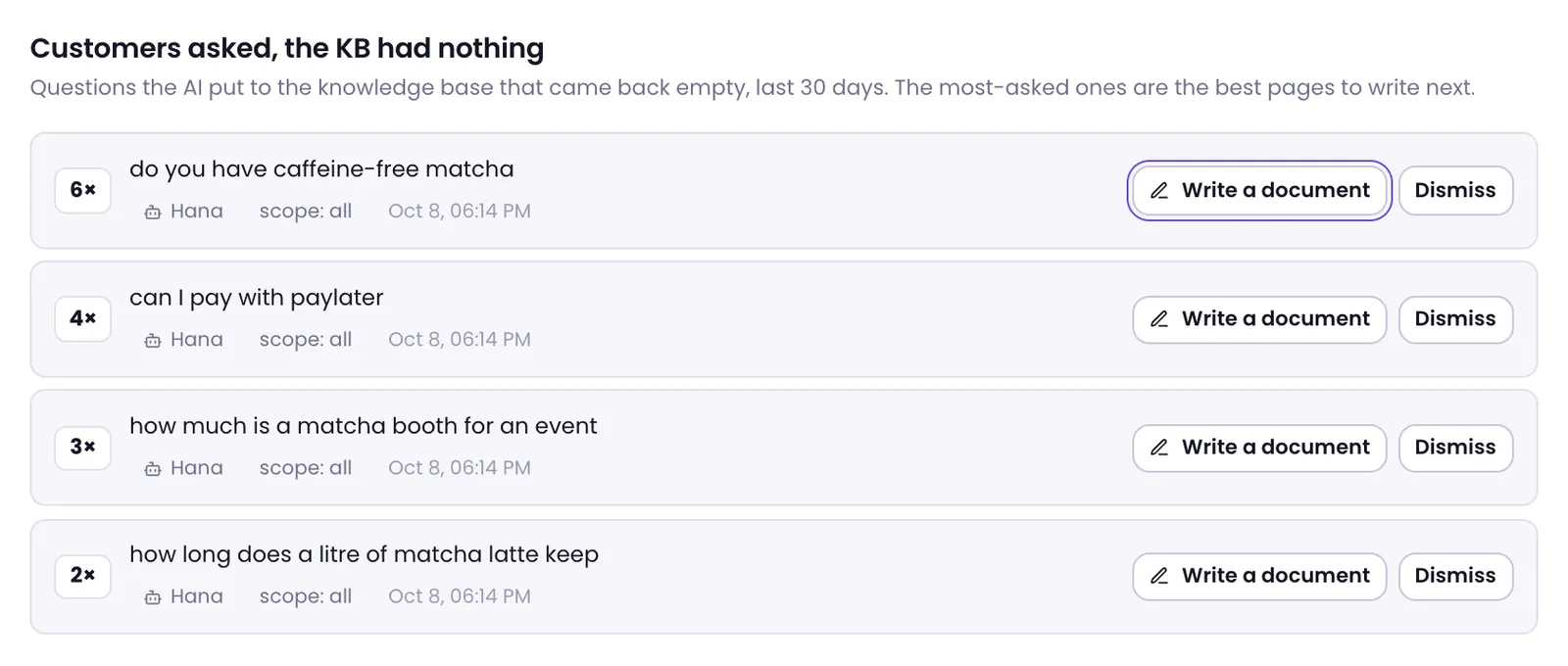
Each row shows:
- How many times it was asked in that period, and when it was last asked.
- The question, as the AI agent searched for it.
- The AI agent that asked. Gaps are tracked per AI agent, so the same question from two AI agents appears as two rows. Older questions with no AI agent recorded are grouped under Unknown agent.
- The scope the AI agent searched in.
If there are no gaps, the tab says every question the AI asked found an answer.
Closing a gap
If you have access to manage the knowledge base, each gap has two buttons:
- Write a document — opens a new text form with the question as the document name. Write the answer, choose a scope, and save. The gap is then marked Document written — awaiting test.
- Dismiss — hides a gap that doesn't need an answer. It comes back if the same question is asked and goes unanswered again.
A new document doesn't close the gap on its own. The gap closes, and leaves the list, once a search for that question succeeds. Click Test to open the Test retrieval tab with the same question, scope, and AI agent, and check that your document is found. To remove the Document written — awaiting test mark, click Undo; the gap opens again.
A document can only be used by AI agents that read its scope. If the AI agent that asked doesn't read your new document's scope, the console tells you. Add that scope in the AI agent's Knowledge tab under Agents, or move the document to a scope that AI agent reads.
Other ways to close a gap
Not every gap needs a new document. Sometimes the answer already exists, but customers use different words. In that case, add those words as Keywords on the existing document, then test again. See Add documents to the knowledge base.
Was this article helpful?