
Set your preferences
Choose your console language, a light or dark theme, audio alerts, your time zone, and the display formats that suit the way you work.
On this page
What you need
- An active DinamisAI account
- Time
- ~3 min
- Steps
- 6
Preferences are personal settings. Your changes apply only to your own account and don't change what your teammates see. Every change saves right away, with no save button, and follows you when you sign in on another device.
Set your preferences
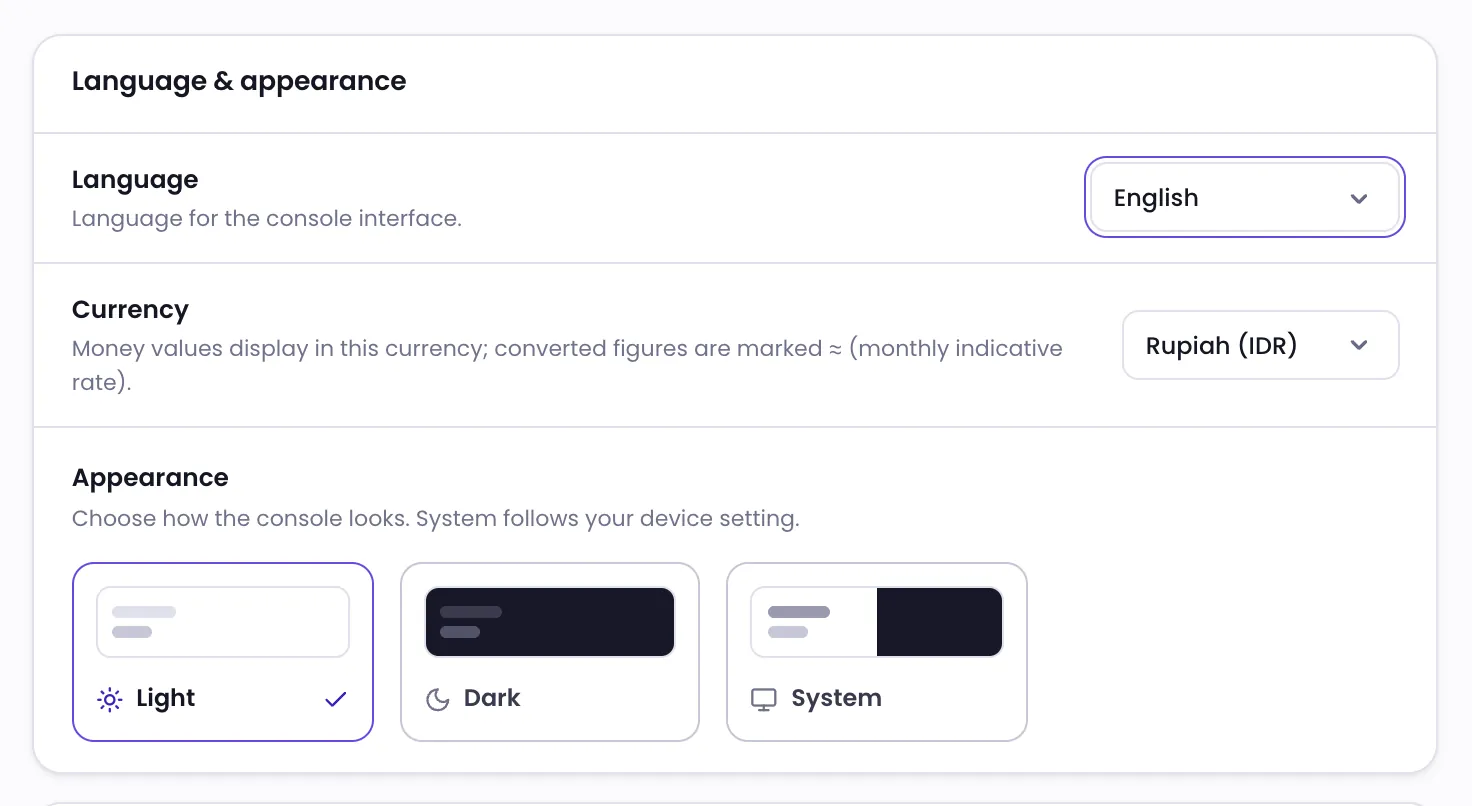
- Open Preferences in the Settings group.
- Under Language & appearance, choose the console Language: English or Bahasa Indonesia.
- Choose an Appearance: Light, Dark, or System to follow your device setting.
- Under Audio alerts, turn Enable audio alerts on or off, then choose Which conversations ring.
- Under Working defaults, choose your Time zone.
- Under Display formats, choose your date, time, and currency formats.
Audio alerts
Each event has its own sound. The sounds can't be changed, but you can play each one with Preview tone so you know what to listen for.
- New message rings when a message arrives. Choose which conversations ring: My assigned conversations, My conversations + unassigned, or All conversations. Tick Only when the browser window is not active if you don't want a sound while you're looking at the console.
- Notifications rings when a new notification reaches the bell. You can turn it off without silencing new-message alerts.
- CSAT appreciation sound plays when a customer gives a high rating while you have their conversation open.
If Enable audio alerts is off, every audio alert stops.
Call readiness
If your team takes calls in the console, allow the microphone before the first call arrives. On the Call readiness card, click Test microphone, then allow microphone access in your browser. The status changes to Microphone ready.
If the status shows Microphone blocked, open the site permissions in your browser (the icon to the left of the address bar), allow the microphone, then test again.
Currency and formats
Currency decides whether money is shown in Rupiah or US Dollars. Converted figures are marked ≈. Under Display formats, you can also turn on Compact large amounts so large numbers stay short in tables.
The Time zone here only changes the times you see. The time zone the whole workspace runs on is set separately in Workspace settings.
When you contact support
At the bottom of the page are Startup diagnostics and Update log. If the console feels slow or an update didn't apply, click Copy and send the result to our support team.
Your password and Two-factor auth aren't set here — they live in Account settings. See Sign in and turn on two-step verification.
Was this article helpful?