
Add documents to the knowledge base
Add text, files, or Google Drive documents to your knowledge base so the AI agent can answer customer questions about your business.
On this page
What you need
- Access to manage the Knowledge base (without it, you can only view documents)
- The content you want the AI agent to use, as text, a file, or a file in Google Drive
- Time
- ~6 min
- Steps
- 5
The knowledge base is what the AI agent reads when it answers customers. You can update it here at any time, without changing the AI agent's settings.
Add a document
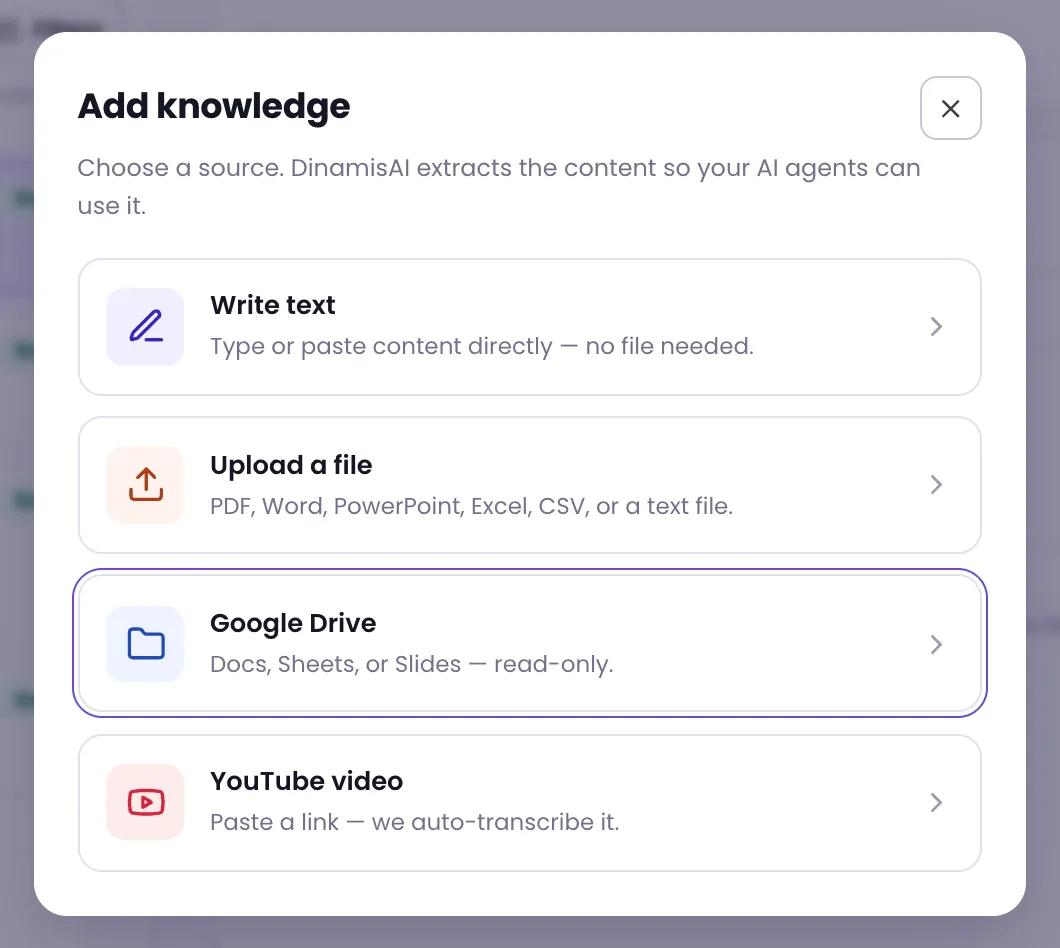
- Open Knowledge base, then click Add.
- Choose a source: Write text, Upload a file, or Google Drive.
- Fill in the document's Name, then choose its Scope. For a file, you can leave the name empty; it defaults to the file name.
- Add the content. For text, type or paste it, then click Add & index. For a file, click the upload area or drag the file onto it; the upload starts right away.
- Wait until the document's status changes to Ready.
Sources you can use
- Write text — type or paste content directly, no file needed. Good for short policies or frequently asked answers.
- Upload a file — PDF, Word, PowerPoint, Excel, CSV, or a text file, up to 50 MB per file.
- Google Drive — Google Docs, Sheets, or Slides. DinamisAI only reads them and never changes them.
- YouTube video — paste a video link; the audio is transcribed automatically.
Adding from Google Drive
After you choose Google Drive, there are two ways:
- Pick from Drive — the first time, click Connect Google Drive and approve access in the pop-up. Once connected, click Choose from Drive and pick files in Google's dialog. DinamisAI only sees the files you pick.
- Share a link — share the file or folder with the email address shown on screen, with Viewer (view-only) access. Paste its URL, give it a name, choose a scope, then click Add & index.
In some browsers, Google Drive's dialog can't open. When that happens, the window switches to Share a link by itself. Use that method to add the same file.
After you add a document
DinamisAI fetches and processes the content. While that happens, the status reads Processing or Indexing. How long it takes depends on the document's size and type. Once the status is Ready, any AI agent that reads the document's scope can use it.
Click a document to see its details. Under Details, you can see its scope, which AI agents read it, and whether it is Visible to AI.
Managing documents
- Rename — click the pencil next to the document's title. The search index refreshes in the background, and the document shows Updating until it's done. If that name appears in an AI agent's instructions, the console asks you to confirm first.
- Keywords — add words customers use that the document itself doesn't, such as synonyms or abbreviations. Press Enter or a comma after each word, then click Save keywords.
- Scope — change a document's scope from its details panel. Before the move, the console shows which AI agents will stop or start reading it. Scopes themselves are managed in the Scopes tab.
- Edit content — for a text document, click Edit, change the content, then click Save & re-index.
- Delete — click Delete and confirm. A deleted document can't be restored, and the AI agent stops using it.
Documents from a source that syncs automatically are marked Read-only · synced. Their title and content follow the original source, so they can't be renamed or deleted one by one.
Troubleshooting
The document's status is Failed
Open the document to read the reason shown. Fix the file or its access, then add it again.
A Google Drive document shows Access needed
Share the document with the email address shown, with Viewer access, then click I've shared it — check access.
The Google pop-up doesn't appear
Your browser may be blocking pop-ups. Allow pop-ups for the console's site, then try again.
The AI agent doesn't use a document that is Ready
Check that at least one AI agent reads the document's scope. Then open the Test retrieval tab, choose the AI agent under Test as agent, and search with the customer's question to see what that AI agent finds.
Was this article helpful?