
Console tour
Learn the layout of the DinamisAI console — the sidebar, the workspace switcher, notifications, and the account menu — so you can find every feature fast.
On this page
The DinamisAI console has three parts: the sidebar on the left, the top bar, and the work area in the middle. The menu you see follows your role and the features turned on for your workspace, so teammates can see different menus.
The sidebar
Dashboard sits at the top. The other items are grouped by the kind of work:
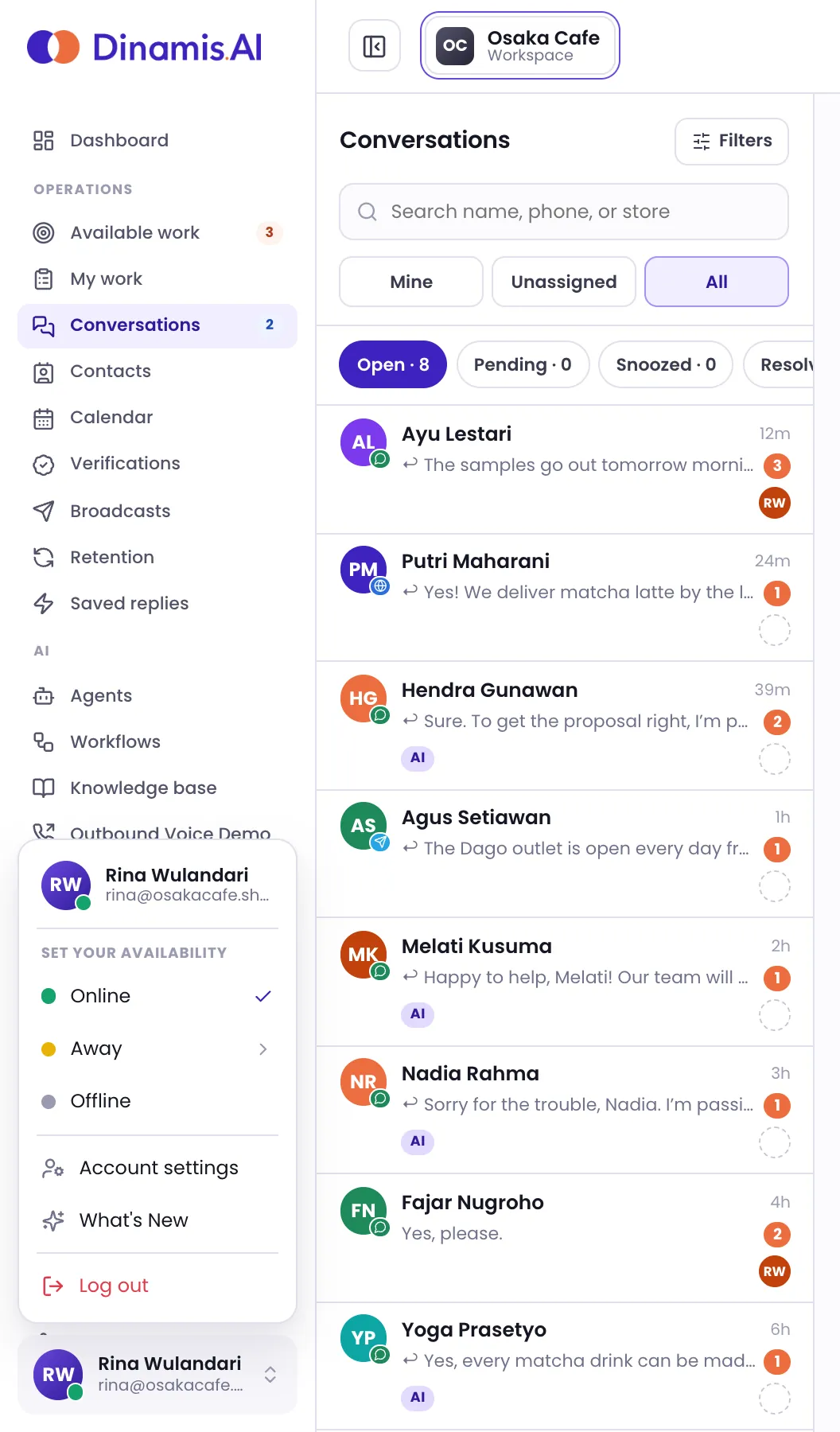
- Operations — your team's daily work, such as Available work, My work, Conversations, Contacts, Calendar, Broadcasts, and Saved replies.
- Transcription — recorded Sessions and their Analyses, if this feature is turned on for your workspace.
- AI — Agents, Workflows, Knowledge base, and Shareable documents.
- Analytics — Performance, Availability, Usage analytics, and other reports.
- Settings — business settings such as Pipelines, Channels, WhatsApp templates, and Workspace settings. Below them are your personal items: Integrations and Preferences.
- Administration — Team (members, teams, roles and the audit log) and API keys.
A group with no items for you is hidden. Preferences is always there for every member.
The numbers next to menu items are work counters. On Conversations, it counts the conversations assigned to you that have unread messages. On Available work, it counts the work you can pick up right now.
On a small screen, the sidebar is hidden. Open it with the Toggle sidebar button in the top left.
The top bar
- Workspace switcher. Your workspace name is shown in the top left. If you belong to more than one workspace, click the name to switch to another one.
- Notifications. The bell icon in the top right. An orange dot means you have unread notifications.
- Update available. This marker appears when a new version of the console is available. Reload once your work is done.
Notifications
Click the bell to open your notifications, such as conversations assigned to you, new work, or notes that mention you. Choose the All or Unread tab, and click Mark all read to clear the markers. Requests for help that are waiting on you appear separately under Needs your answer.
Click a notification to open the related conversation or page. The list keeps notifications from the last 90 days.
The account menu
Click your name in the bottom left to open the account menu:
- Set your availability — choose Online, Away, or Offline. When you choose Away, you can add a reason. Your availability decides whether new work comes to you.
- Account settings — your profile, password, Two-factor auth, Sessions, and your workspaces under Organizations.
- What's New — the latest DinamisAI features and fixes. A dot next to it means there are updates you haven't read.
- System status — the service status page, when available.
- Log out — sign out of the console on this device.
To set your language, theme, and sounds, see Set your preferences. To understand why your menu differs from a teammate's, see Roles and access.
Was this article helpful?