
Reply to customers
Send replies, files, emoji, and voice notes from the reply box, schedule messages, and understand WhatsApp's 24-hour window.
On this page
What you need
- Access to reply to conversations
- Time
- ~5 min
- Steps
- 5
Every reply to a customer is written in the reply box below the conversation, whatever the channel.
Send a reply
- Open Conversations, then pick a conversation.
- Make sure the Reply tab is active, not Private note.
- Type your message. Press Shift+Enter for a new line.
- Click Send or press Enter.
- When the matter is settled, click Resolve. The conversation reopens on its own if the customer writes again.
If the AI agent is handling the conversation, your reply automatically takes it over. See Take over a conversation from the AI.
Send a file
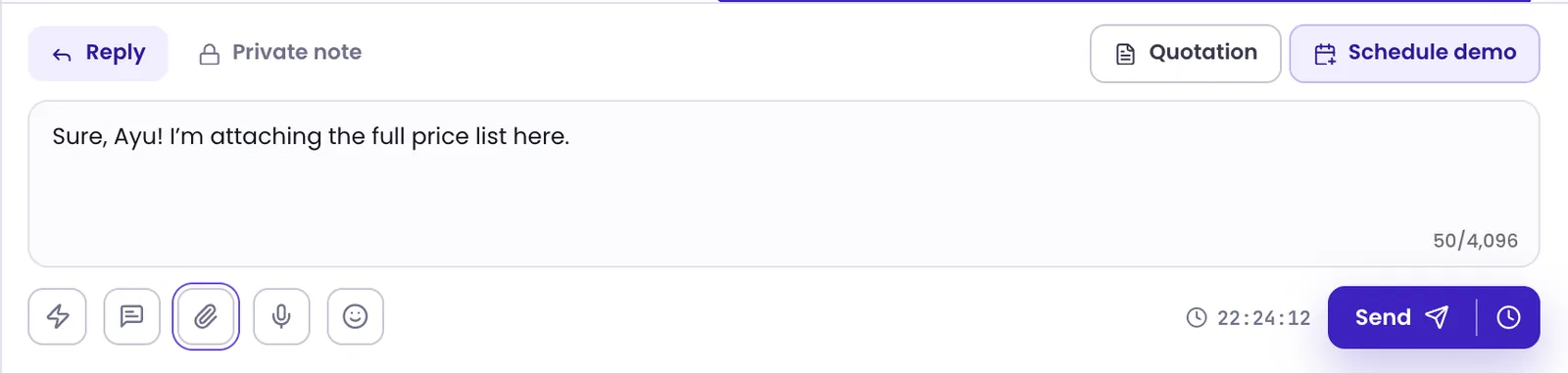
Click Attach file, choose a file, add a caption if you like, then click Send. Each send carries one file. On WhatsApp you can send PDF, Word, Excel, PowerPoint, plain-text files, and image, audio, and video files. If a file is too large, the reply box tells you the size limit.
Emoji and voice notes
- Click Emoji to pick an emoji.
- Click Record a voice note to record a voice note. Your browser asks for permission to use the microphone. When you're done, click Stop recording, then Send or Discard. Recording stops on its own after 5 minutes.
Reply to a specific message
Open the Message actions menu on a message, then choose Reply. Your reply quotes that message.
Schedule a message
- Write your message, then click the clock icon next to Send (Schedule send).
- Pick one of the quick options, or set a date and time yourself. Times follow your own time zone, up to 90 days ahead.
- Click Schedule.
Scheduled messages appear above the reply box. Until they go out, you can choose Edit, Cancel, or Send now.
WhatsApp's 24-hour window
On WhatsApp, you can reply freely for 24 hours after the customer's last message. The countdown next to Send shows the time left, and its colour changes as time runs out.
Once the window closes, the reply box locks and you can only send a template message:
- Click Use a template.
- Choose an approved template and fill in its variables.
- Click Send template.
The window opens again as soon as the customer replies. Templates live in WhatsApp templates; see Manage WhatsApp templates.
A message scheduled for after the 24-hour window closes will fail unless the customer replies first. The scheduling dialog warns you when this is about to happen.
Was this article helpful?