
Add Live Chat to your website
Add a Live Chat button to your website so visitors can chat with your team and AI agent directly from any page.
On this page
What you need
- Access to Channels
- Your website's address
- Access to edit your website's code, or to its Google Tag Manager
- Time
- ~7 min
- Steps
- 6
Live Chat puts a chat button in the corner of your website. Conversations from that button arrive in Conversations, just like messages from any other channel. In the list of channel types, Live Chat appears as Web Widget.
Install Live Chat
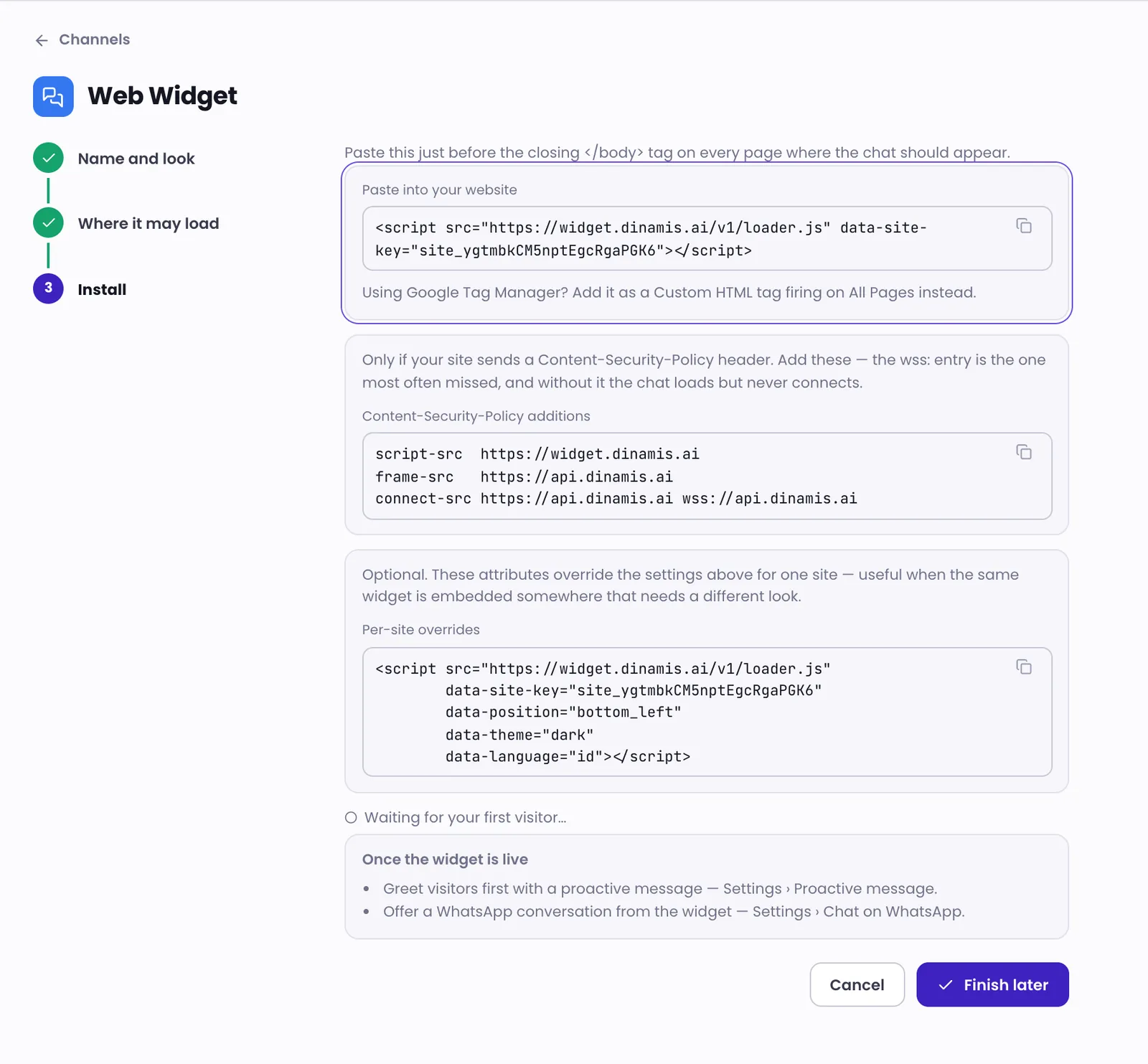
- Open Channels, click Add channel, then choose Web Widget.
- In the Name and look step, fill in the Channel name and choose Public website — visitors are guests.
- Set the Brand colour, a welcome message, the Assistant name and the Team name, then click Continue.
- In the Where it may load step, enter your website's address under Your website addresses, one per line, then click Continue.
- In the Install step, copy the code under Paste into your website and paste it just before the closing
</body>tag on every page where the chat should appear. - Open your website and try the chat. Once the status changes to Widget connected, click Done.
The App with sign-in — your app tells us who the user is option is only for an app with its own sign-in and needs a developer's help. It can't be changed once the channel has a conversation.
Allowed website addresses
The chat only loads on the websites you list. That is what stops someone else from putting your chat on their site.
- Enter just the domain, such as
yourshop.com, not an email address. - Use
*.yourshop.comto cover all subdomains. It doesn't coveryourshop.comitself, so list both if you need them. - With nothing listed, the chat loads nowhere.
You can change this list any time in the Allowed websites section.
Other ways to add the code
- Google Tag Manager. Add the code as a Custom HTML tag firing on All Pages, as the install step describes.
- Content-Security-Policy. If your website sends a Content-Security-Policy header, copy the lines under Content-Security-Policy additions that the wizard shows into that policy. Without them, the chat can appear but never connect.
If you close the wizard before finishing, the channel shows a Finish setup button in the Channels list. Click it to get back to the same code. Code you already pasted keeps working.
Settings worth knowing
Open the Live Chat channel in Channels, then the Widget settings tab. Each section has its own save button. The ones used most often:
- Proactive message — show a greeting bubble beside the chat button, including different messages for specific pages.
- Chat on WhatsApp — offer visitors the option to continue on WhatsApp, always or only when no one is available to chat.
- Availability — set business hours and what happens when nobody is available: accept the message and reply later, or ask for contact details first.
- Before the chat — ask for a name, phone number or email before the chat starts; each field can be not asked, optional or required.
- Chat page — show this channel on your Chat Page. See Turn on Chat Page.
Troubleshooting
The code is installed but the chat button doesn't appear
Check the list of allowed website addresses: your site's address must be listed exactly, and *. does not cover the main domain. If your website uses a Content-Security-Policy, make sure every line from the wizard was added.
The status never changes to connected
The status changes only once someone starts a chat on your website. Loading the page or just opening the chat window isn't enough. Open your own website, open the chat and press start (fill in the form first if it asks for your details). You can also click Finish later and come back later.
Was this article helpful?