
Message delivery status
What the clock, grey ticks, blue ticks, and failed mark on each outgoing message mean, and what you can do when a message fails to send.
On this page
Every message sent to a customer, whether by you, a teammate, the AI agent, or an automation, shows its status next to the time it was sent. The console only shows a status the channel actually reported. Private notes have no status, because they are never sent.
What each mark means
Hover over a mark to see its explanation.
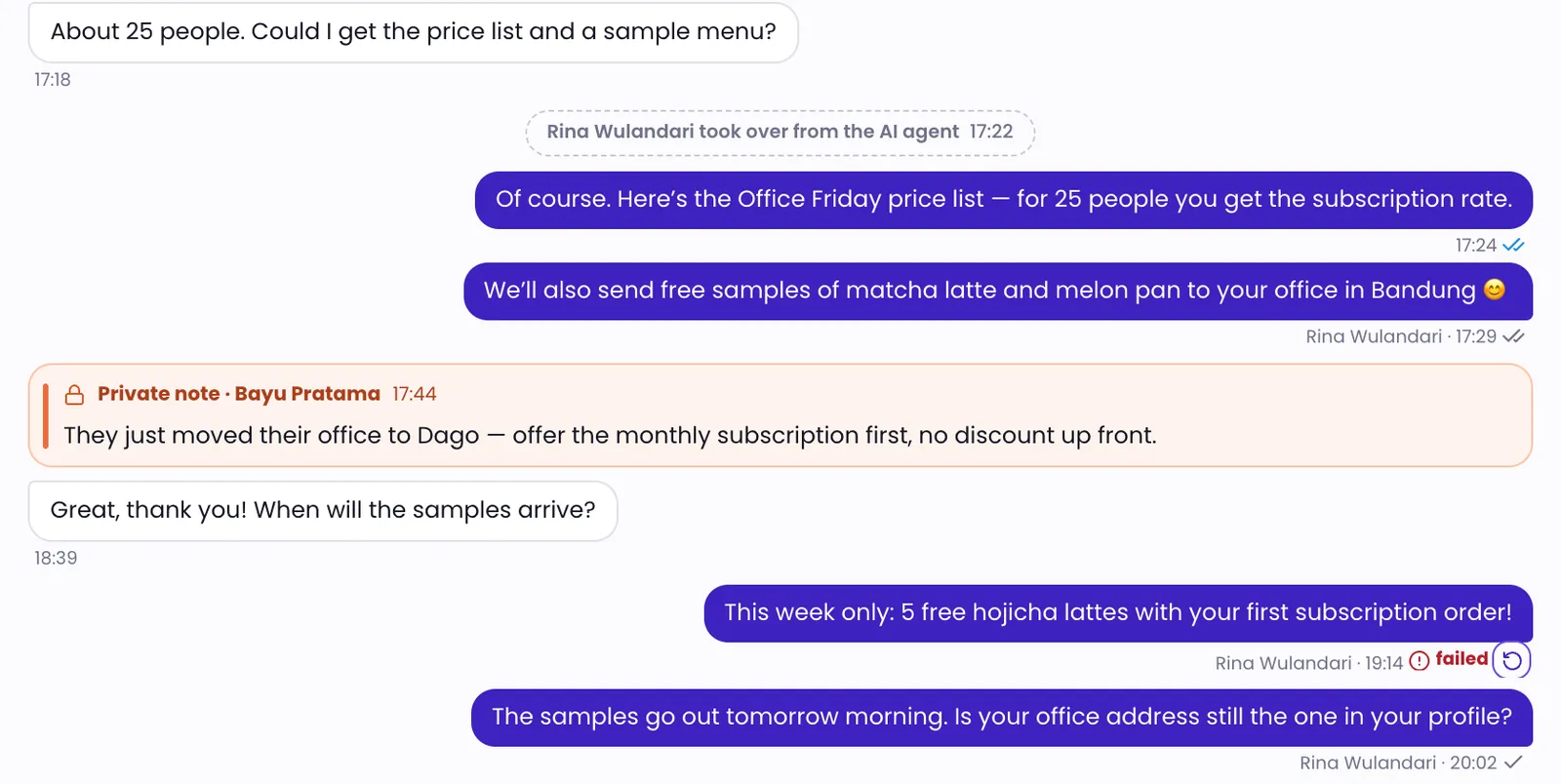
| Mark | Meaning |
|---|---|
| Clock icon | Queued — not yet accepted by the channel |
| One grey tick | Sent |
| Two grey ticks | Delivered |
| Two blue ticks | Read |
| Red "failed" | Failed. See the next section. |
Some channels, such as Telegram, don't report whether a message arrived or was read. On those channels, a sent message shows two grey ticks straight away with the note "Sent — this channel reports no delivery receipts".
When a message fails
- Hover over "failed" to see the reason the channel reported.
- Click the retry icon next to it (Retry send) to try sending again.
If you can't click the retry icon, WhatsApp's 24-hour window has usually closed. Sending again would fail too, so send a template message instead. See Reply to customers.
Some failures are retried automatically. If a message couldn't be sent because of a temporary problem, such as a network or service outage, the system tries again several times over the next few minutes, and the message keeps its clock icon in the meantime. For a few kinds of WhatsApp failure reported after sending, a later retry can be planned too, but only when automatic retry is turned on for that number. A planned retry shows in Delivery details. A failure caused by the message itself or by the channel's connection is never retried automatically.
Delivery details
If your role has access, open the Message actions menu on a message and choose Delivery details. It lists every send attempt with its timing and the channel's response.
When a send isn't confirmed yet
Sometimes the console hasn't yet received confirmation that your message was accepted, for example because the connection dropped. The reply box tells you when this happens. Don't send again straight away, or the customer may get the message twice. Click Check again to check whether it arrived.
Read receipts for the customer
A customer's message is marked as read only when you actually see it: the console tab is open, its window is active, and the conversation is scrolled to the newest message. That's when the customer sees the read receipt, such as blue ticks on WhatsApp.
Was this article helpful?