
Private notes and the context panel
Leave notes only your team can see, mention a teammate with @, and see the customer's context in the panel beside the conversation.
On this page
A private note is an internal message inside a conversation. Only your team can see it, and it is never sent to the customer.
Write a private note
In the reply box, choose the Private note tab. The box turns orange to show that what you write won't reach the customer. Write your note, then click Save.
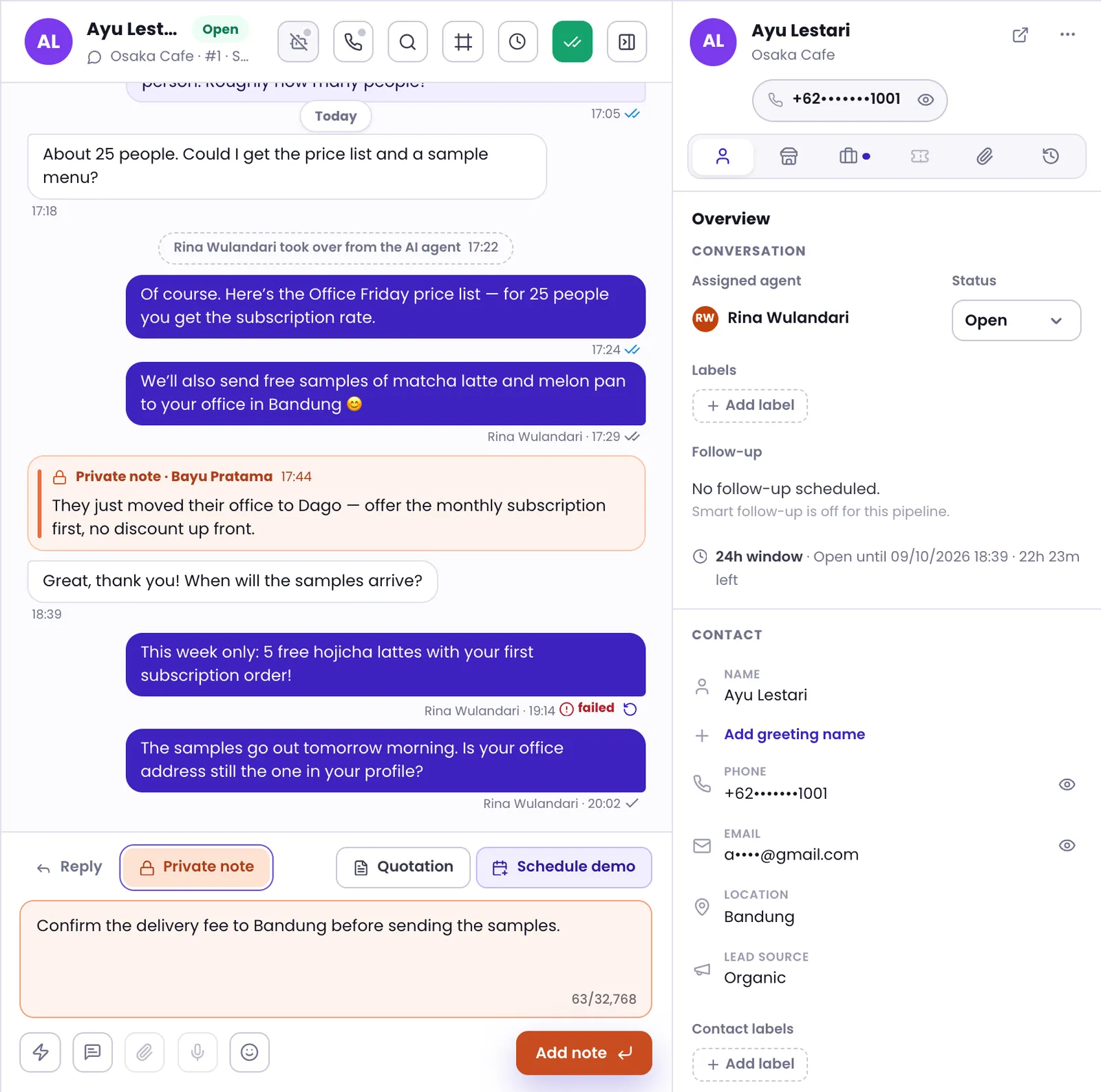
- A note doesn't take the conversation over from the AI agent. Only a reply to the customer does that.
- You can't add files or voice notes to a note, but you can add emoji.
- The AI agent doesn't treat private notes as part of the conversation when it replies to the customer.
A note that starts with @ai asks your AI agent a question. The answer comes back as a private note that only your team sees. This works in workspaces with an active AI agent.
Mention a teammate
Type @ in a note, then pick a name from the Mention a teammate list. The teammate you mention gets a notification, and their name is highlighted in the note.
Private notes and contact notes
A private note belongs to one conversation. For information about the customer themselves, such as preferences or habits, use Contact notes in the context panel. Contact notes show in every conversation with that contact and on their contact page.
The context panel
Click Details panel at the top of the conversation to open the panel on the right. The top of the panel always shows who the customer is. Below it are several tabs:
| Tab | What it shows |
|---|---|
| Overview | The conversation's agent and status, labels, follow-up, time left in the 24-hour window, then contact details, contact labels, and Contact notes |
| Stores | The contact's stores and their subscriptions, such as plan and end date. Filled once your workspace links store data to the contact |
| Sales | Sales work in progress: stage, next step, the AI's handoff note, and outcome buttons |
| Files | Images, videos, and documents in the conversation, which you can filter by sender |
| History | Other conversations with the same contact |
The tabs are always in the same order, in every conversation. A tab that isn't available to your role or workspace stays visible but dimmed. On a wide screen, the panel remembers the last tab you opened.
The AI's status isn't in the panel. The AI button at the top of the conversation shows it; see Take over a conversation from the AI.
Was this article helpful?