
Manage contacts
Find, open, edit, and add contacts in Contacts, and learn how DinamisAI recognises one customer who reaches you on several channels.
On this page
What you need
- Access to Contacts
- Time
- ~4 min
- Steps
- 4
Contacts lists everyone your AI agent and team have talked to, across every channel. A contact is created automatically as soon as someone messages you, so you don't need to add people one by one.
Find and edit a contact
- Open Contacts.
- Search by name, company, or phone number. To narrow the list, for example by label, owner, or city, click Filters.
- Click a contact's row to open their page.
- If your role allows it, click Edit to change the name or company, then click Save.
The contact page
The contact page brings together everything known about one customer:
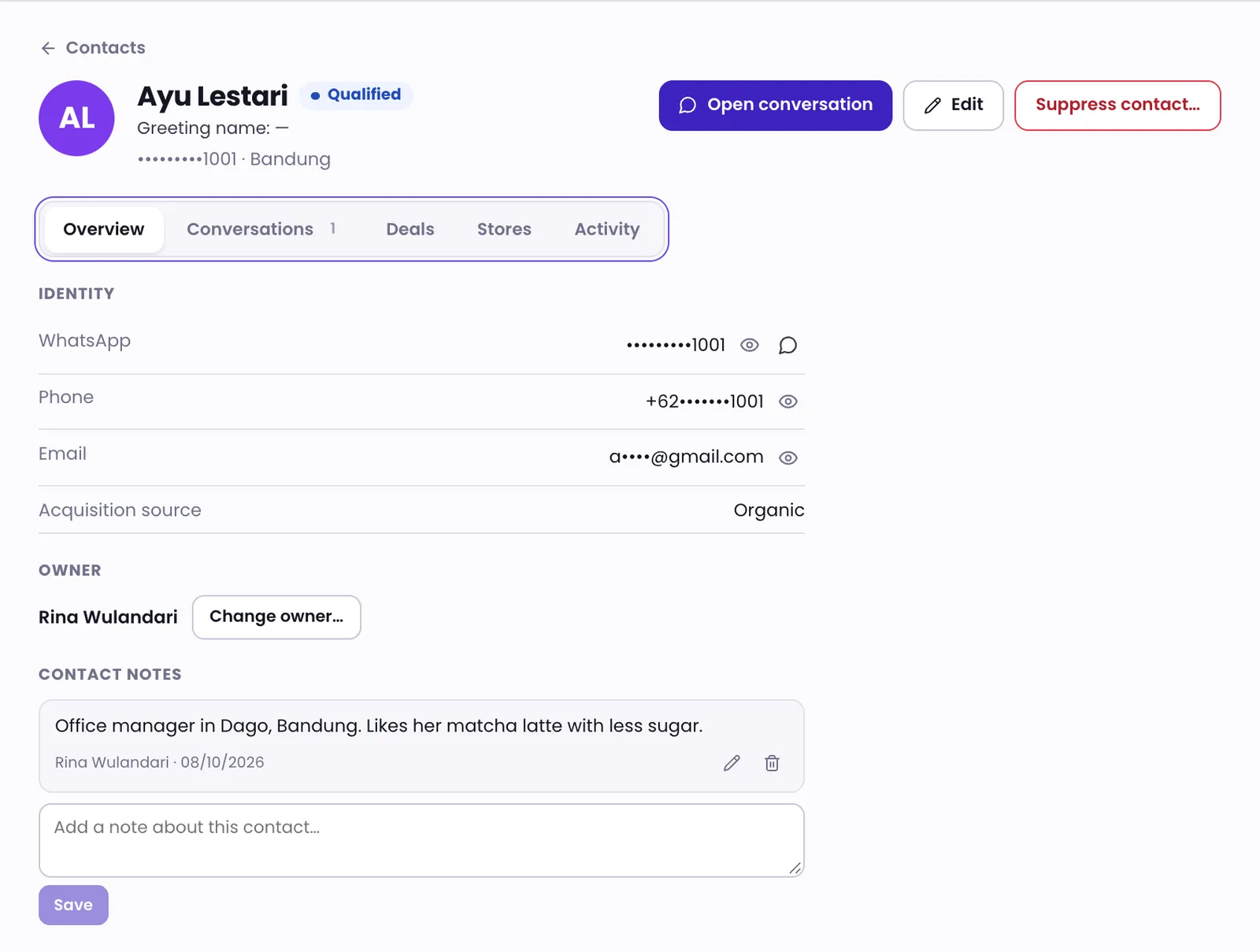
- Overview — their identities on each channel, acquisition source, Owner, attributes, and Notes.
- Conversations — every conversation with this contact.
- Deals — related sales opportunities.
- Activity — a history of changes, such as labels added or a new owner.
Click Open conversation to reply straight away. Phone numbers and email addresses may be masked. If your role allows it, click Reveal number (logged) to see them; every reveal is recorded.
Add a contact
If your role allows it, click Add contact, then fill in Name, Phone, Email, and Company. If that phone number or email already belongs to a contact, DinamisAI opens the existing contact instead of creating a new one.
Duplicate contacts
One customer may reach you on several channels. When a customer writes from a phone number or email you already know, DinamisAI adds it to the existing contact, so their history stays together. Details someone types into your website chat form are matched this way only when your website confirms who they are. You can't merge two contacts yourself in the console. If you find a duplicate, contact the DinamisAI team.
Moving a contact list
Want to bring a contact list from another system into DinamisAI? Contact the DinamisAI team first, and we will help set it up.
Was this article helpful?